Not every DraftSight command gets used every day. Some tools sit quietly in the background, but that does not mean they are unimportant. Many of these less visible tools fall into a group you can think of as utilities, and they are very useful for keeping your drawings safe and healthy.
This guide looks at some key DraftSight utilities that help you protect your work, tidy files, and recover from problems.
Auto-save and Backup
If you have worked with CAD for any length of time, you know that problems can happen unexpectedly. A file might be deleted by mistake, moved, or affected by a computer crash or a system error such as the Blue Screen of Death.
DraftSight includes tools that help reduce the amount of work you could lose in situations like these. The first is Auto-save.
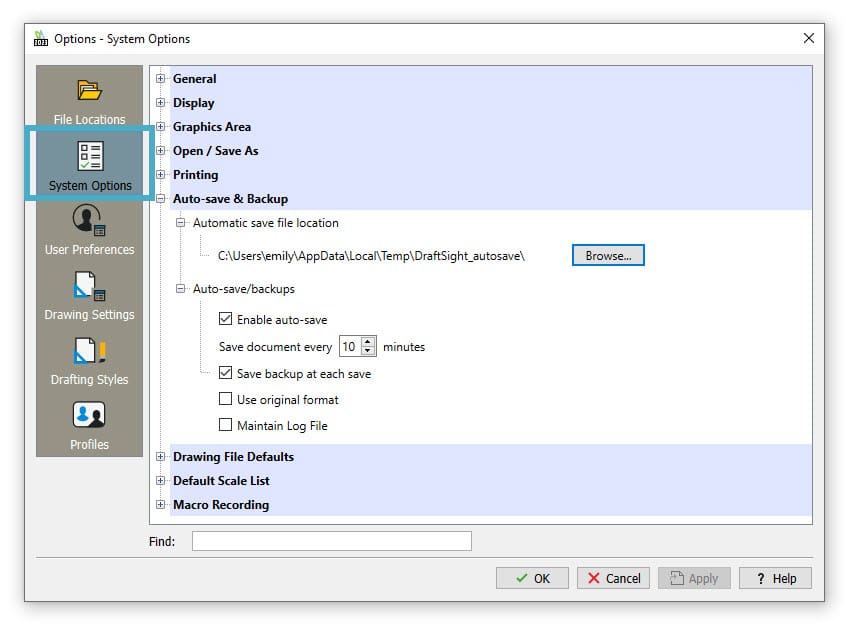
You can control Auto-save in the Options dialog, under the System Options tab. To use it, make sure Enable auto-save is checked. Then:
Set the Auto-save time interval in minutes. The default value is ten minutes, which works well for many users.
Check the folder where Auto-save files are stored. DraftSight creates a default folder during installation, which is suitable for most setups.
If something goes wrong, you know you have an Auto-save file from within the last interval. Go to the folder shown, find the file with your drawing name and the .ds$ extension, rename the extension to .dwg, and open it in DraftSight.
In the same section of the Options dialog, you will also find the setting for creating backup files. By default, this is turned on. Each time you save, DraftSight creates a .bak file in the same folder as the drawing. It works in a similar way to the Auto-save file. To use it, change the extension from .bak to .dwg and open the file.
Rename
Sometimes you need to change the name of a named item in DraftSight. Named items include things like layers, blocks, text styles, and similar elements.
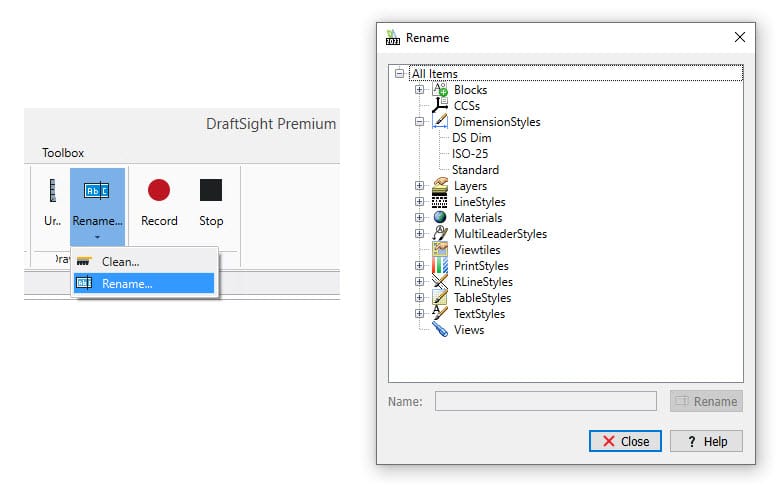
DraftSight provides the RENAME command to make this easy. You can find it in the Drawing panel of the Manage tab on the ribbon, in the pulldown menu.
The process is straightforward:
Open the RENAME dialog.
Expand the category where the item belongs, for example layers or blocks.
Select the item you want to change.
Type the new name in the field at the bottom.
Click Rename.
You can repeat the process for as many items as needed. When you are finished, click Close.
Clean and Check
Over time, drawing files often pick up unused or unwanted data. In many cases this extra data is harmless, but sometimes it can contribute to file problems or even corruption. A good CAD habit is to keep your drawings as clean and efficient as possible.
DraftSight provides two important utilities for this: CLEAN and CHECK.
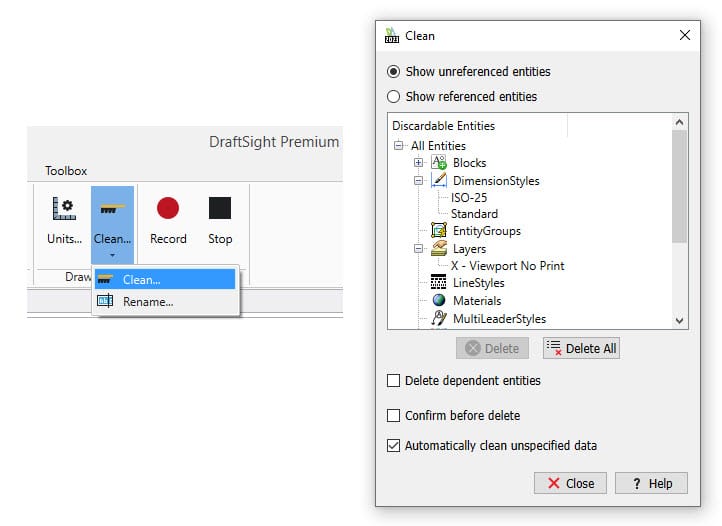
1. CLEAN: You can find the CLEAN command in the same pulldown as RENAME in the Manage tab. The most recently used command will appear as the visible icon. CLEAN works on the list of named items. If an item, such as a block or a layer, is not used anywhere in the drawing, it appears in the CLEAN list and can be removed from the file. This helps reduce file size and remove unnecessary content from the drawing database.
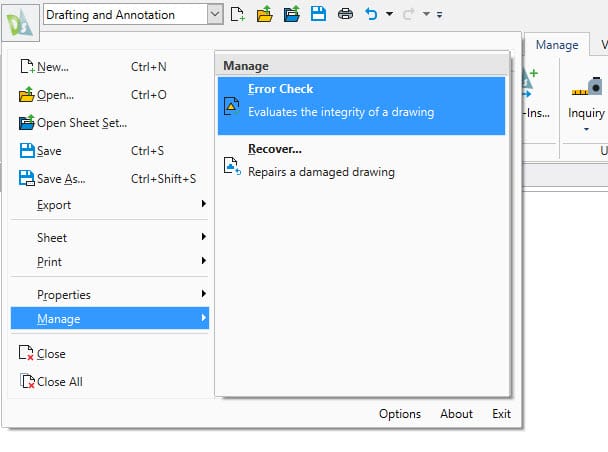
2. CHECK: The second part of file maintenance is to regularly check the DWG file for errors and choose whether to fix them. This is done with the CHECK command. You can access CHECK through the Application Menu. Open it, expand the Manage section, and click the Error Check icon. CHECK runs from the command line and has a single main prompt. DraftSight will ask if you want to fix any errors that are found. The typical answer is Yes, although the default is No, so you may need to change it.
When the check is complete, the Command Window reports how many errors were found and how many were corrected.
Recover
CLEAN and CHECK help keep drawings in good condition, but sometimes a file becomes so damaged that DraftSight cannot open it in the usual way. Before you rely on a backup or Auto-save file, you have another option.
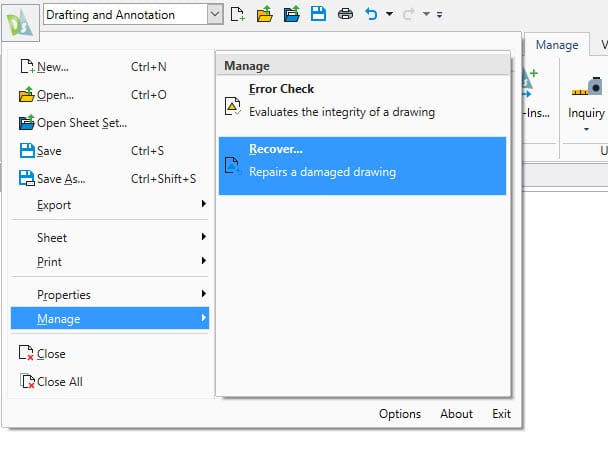
Instead of using Open, go back to the Application Menu where you found Error Check, but this time choose Recover.
The Recover process looks similar to opening a file:
Select Recover.
Browse to the DWG file that will not open.
Select it and click Open.
DraftSight will first run a check on the file and try to repair what it can. If successful, it then opens the drawing. Once the file is open, you can run CLEAN and CHECK again to perform further maintenance.
A useful tip: if Recover allows the file to open but you still cannot fully fix it, try using EXPORTDRAWING to create a new drawing file. EXPORTDRAWING only writes the content needed to build the new file, so problem data that is causing issues in the original drawing may be left behind.
Conclusion
Problems such as crashes, corruption, or unwanted data cannot always be avoided, but DraftSight provides several utility commands that help you prepare for them and deal with them when they happen.
By enabling Auto-save and backups, using RENAME to keep names organised, running CLEAN and CHECK regularly, and using Recover and EXPORTDRAWING when files are damaged, you can keep your DWG files in better condition and reduce the risk of losing work.
Adapted from DraftSight Blog: “DraftSight: Utilizing the Utilities”.