Clear, easy-to-read technical drawings are essential for smooth manufacturing, whether your parts are made in Malaysia, Singapore, or exported overseas. One important element is surface finish. With DraftSight, you can add standardized surface finish symbols directly to your drawings, so texture requirements are clear without cluttering the design.
What is Surface Finish?
Surface finish describes the texture of a part after processes like machining, grinding, or other finishing operations. It’s about how smooth or rough the surface is.
This has a direct impact on:
How the part looks
How well parts fit together
How long components last in use
The overall cost to manufacture the part
Because of this, clearly defined surface finish is an important part of engineering and production.
Surface Finish Symbols in DraftSight
Surface finish symbols work in a similar way to welding symbols: they keep drawings tidy while still communicating important information.
Instead of long text notes, these compact symbols can indicate:
Surface roughness callouts
Machining requirements
Material removal allowances
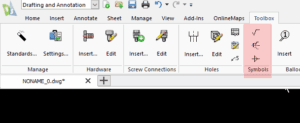
In DraftSight, you can access these tools from the Toolbox:
Go to the Toolbox tab.
In the Symbols section, choose Surface Finish Symbol.
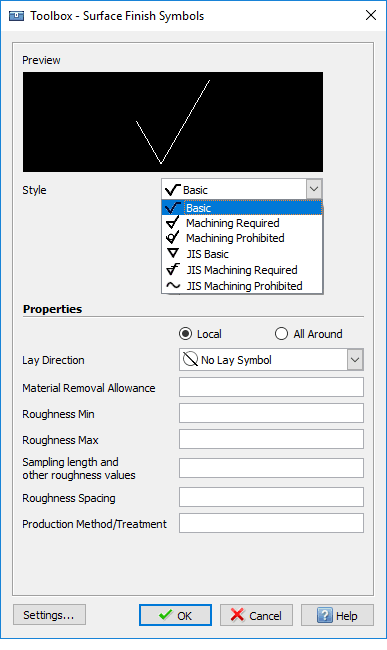
When you click this tool, a settings window opens. From there, you can set key attributes such as:
Surface finish standards
Lay direction
Surface roughness symbols, including minimum and maximum values
Once you confirm your settings and click OK, the symbol is attached to your cursor so you can place it exactly where it’s needed in the drawing.
If you want to change how the symbol is oriented, you can use the Flip Surface Finish Symbol tool to quickly reverse the direction with a single click.
Why Surface Finish Specifications Matter
Surface finish influences:
How components function
How well they fit together
The cost of manufacturing
The right surface finish callout can help:
Reduce friction and wear
Prevent corrosion
Ensure parts are assembled correctly
Using standardized surface roughness symbols in your DraftSight drawings makes it easier for manufacturers to understand your requirements and reduces the risk of misinterpretation. A good understanding of surface finish standards also helps avoid unnecessary machining and extra cost.
How to Add Surface Finish Callouts in DraftSight
Adding surface finish information in DraftSight is a simple process:
Open the Surface Finish Symbol tool
Go to the Toolbox tab.
In the Symbols section, select Surface Finish Symbol.
Choose the style / standard
In the options window, you can choose your preferred surface finish chart style, such as:Basic
Machining Required
JIS standard
Enter the required specifications
Before placing the symbol, you can fill in:Surface roughness callout values
Lay direction
Adjust appearance (optional)
If you want to fine-tune how the symbol looks, click the Settings button in the options window. Here, you can adjust:Layer preferences
Text styles
Text sizes
Place and adjust the symbol
After everything is set, click OK. The symbol will follow your cursor, and you can place it on the drawing where needed.
If you need to change its orientation later, use the Flip Surface Finish Symbol tool to quickly reposition it.
Best Practices for Surface Finish Callouts
To get the most value from surface finish symbols in your DraftSight drawings:
Focus on clarity
Clear, simple symbols make it easier for manufacturers and production teams to understand your requirements.Use correct units and consistent formats
Choosing the right units and keeping your surface finish callouts consistent improves communication across teams and partners.Avoid overly tight tolerances when they’re not needed
Very tight surface finish requirements can increase machining time and cost. It’s better to specify only what’s necessary for the part to function properly.
In Summary
DraftSight’s surface finish symbol tools help you create precise, professional drawings while keeping them clean and organized. With just a few steps, you can:
Add standardized surface finish information
Control roughness, machining requirements, and lay direction
Flip and adjust symbols for clearer layouts
Adapted from DraftSight Blog: “Flip out for Surface Finish Symbols with DraftSight”.