If you spend a lot of time cleaning drawings, working with PDFs, or managing tables and layers, a few DraftSight workflow improvements can make everyday drafting easier and more consistent.
This article summarizes several useful ideas shared in that session, organized into quick areas you can test in your own projects.
Customize the interface to match your workflow
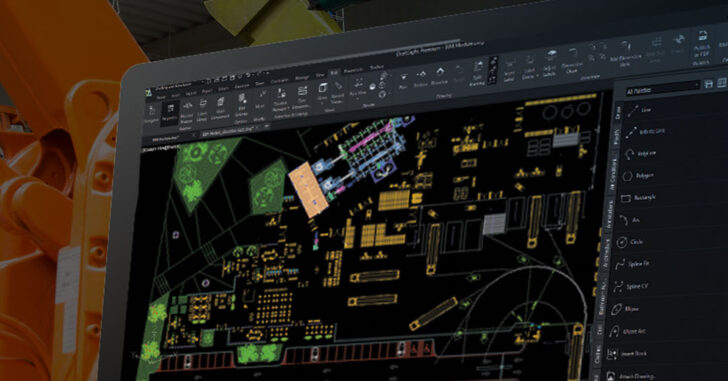
DraftSight includes options to adjust the workspace so common tools and settings are easier to access.
Ideas to try:
switch between light and dark themes based on your comfort
adjust crosshair size for clearer navigation and precision
use the search function inside the options window to locate settings faster
Use advanced 2D tools to speed up editing
Some DraftSight tools are designed to reduce manual cleanup work.
Examples:
Power Trim and Power Extend can help you trim and extend geometry faster during drafting and cleanup
dynamic blocks and custom blocks can support faster drafting when you reuse common symbols, layouts, or components
Work more efficiently with PDFs and flattening
DraftSight includes tools that can make PDF-based workflows easier, especially when you receive drawings as underlays or references.
Useful options include:
attaching PDFs as underlays and scaling them using a reference method
converting some PDF content into editable entities when you need to revise geometry
flattening 3D data into 2D when preparing consistent 2D drawings
Keep drawing data consistent with Data Links
If you manage project data in spreadsheets, data linking can help reduce manual retyping.
DraftSight’s Data Link feature can be used to connect drawing elements with external spreadsheet data so updates are easier to manage, especially for tables such as parts lists or project information.
Improve table workflows with newer features
If your drawings include schedules, BOM-style tables, or structured data, table enhancements can help with layout and organization.
Features highlighted include:
inserting blocks into table cells for clearer visual representation
auto-fill to quickly populate sequential values
splitting large tables to fit layouts more neatly while keeping information organized
Clean drawings and keep files manageable
Clean layer structures and reduced duplicates can improve drawing clarity and may improve performance, depending on the file.
DraftSight tools discussed include:
layer management options such as isolating layers and previewing objects
duplicate cleanup tools to remove overlapping or repeated entities
Adapted from DraftSight Blog: “Mastering DraftSight: Tips and Tricks for Maximum Productivity”.