The Drawing Recovery Tool in DraftSight helps you regain access to drawing files that are partially or fully corrupt. It can detect issues in a DWG file, attempt to repair the damaged data, and in many cases allow the drawing to open and behave normally again.
DraftSight provides two main recovery tools:
Recover – Opens the Drawing Recovery interface and tries to repair the selected file.
ReplaceRecover – Closes the current drawing and partially recovers another file that failed to open properly.
Both options are available from the Manage tab in the DraftSight interface.
How to Open the Drawing Recovery Manager in DraftSight
To use the Drawing Recovery Tool, follow these steps:
Open DraftSight.
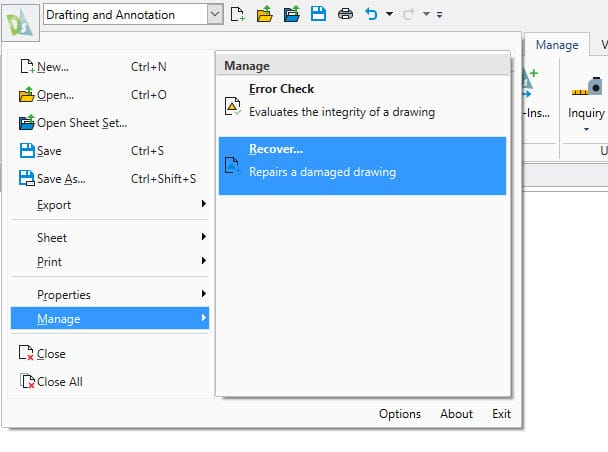
Click the DraftSight icon.
Go to Manage > Recover.
In the dialog box, browse to the corrupted DWG file.
Select the file and click Open.
DraftSight will analyze the file:
If recovery is successful, the drawing will open.
If not, you’ll see a notification that recovery failed.
If the Drawing File Cannot Be Recovered
If DraftSight is unable to recover the original file, you still have options to reduce data loss using Auto-save and Backup files.
DraftSight creates:
Auto-saved files with the extension
.ds$Backup files with the extension
.bak
To use these:
Locate the
.ds$or.bakfile.Rename the file extension to
.dwg.Open the renamed file in DraftSight.
To check or change where Auto-save and Backup files are stored:
Go to the Manage tab.
Click Options (under Customization).
Open System Options > Auto-save and Backup.
Tips to Prevent Data Loss
To lower the risk of losing work:
Save frequently, especially before commands that require heavy processing.
Turn on Auto-save for an extra safety net in case of crashes or power loss.
Store important drawings somewhere other than your local machine, such as an external drive or cloud storage.
If DraftSight becomes unresponsive, avoid force-quitting while a file is open, as this is a common cause of file corruption.

After Recovery: Use CLEAN and CHECK
Once you recover a drawing, it’s a good idea to clean it up and check for remaining issues:
Run the CLEAN command to remove excess data that may lead to future corruption and unnecessary file size.
Use the CHECK command to run a diagnostic on the recovered file and automatically fix minor errors.
These steps help keep your recovered drawing stable and easier to work with in the future.
Keep Your DraftSight Drawings Healthy
Knowing how to open the Drawing Recovery Manager and use DraftSight’s recovery features gives you a solid chance of saving work if a drawing file becomes corrupted. Combined with Auto-save, backups, good file habits, and commands like CLEAN and CHECK, you can greatly reduce the impact of file problems on your projects.
Adapted from DraftSight Blog: “Drawing Recovery Tool: What to Do When the Drawing File Requires Recovery”.