
Historically, DraftSight users faced a significant hurdle when working with PDF drawings. In DraftSight 2019 SP2 and earlier, the software lacked a native way to interpret PDF data, forcing users to rely on third-party plugins or manual tracing.
Starting with DraftSight 2019 SP3, the transition from external plugins to a built-in tool made importing PDF drawings much more efficient. This feature allows you to convert PDF files into editable DWG entities like lines, arcs, and circles, rather than just attaching them as non-editable underlays.
Here is a detailed breakdown of how to use the built-in PDF import feature:
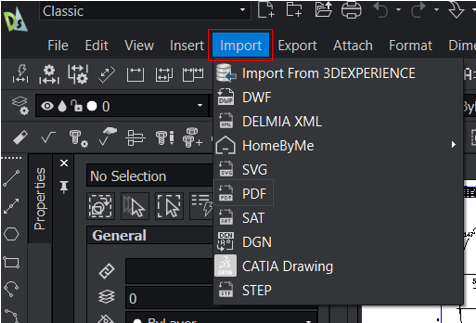
1. In DraftSight, go to Import > PDF.

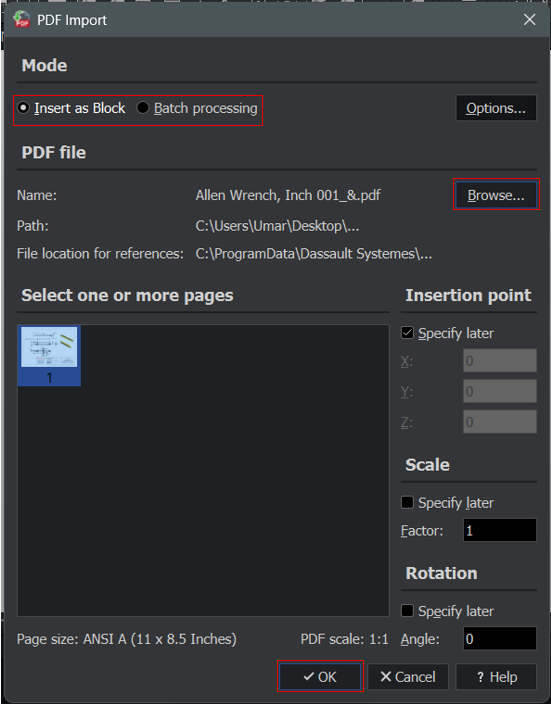
2. You can choose which import options do you wish to apply.

Note:
- Insert as Block: bringing a PDF’s content into your drawing as a single, grouped entity (a block).
- Batch processing: automatically convert an entire folder of individual PDF files into editable DXF or DWG files in a single folder location.
3. Click ‘Browse’ to choose the PDF files that you want to import.
4. Click ‘OK’.
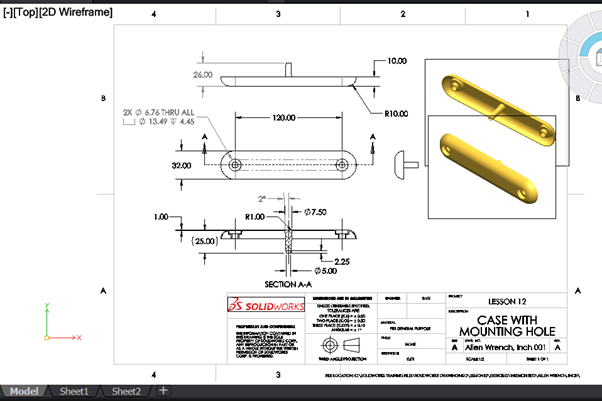
5. Place your imported PDF into your drawing.

6. Your PDF file is successfully imported into DraftSight.

Note:
- If the PDF file contains vectors, they are converted to drawing entities such as lines, circles, ellipses, and splines. Text lines are converted to text entities using the same fonts (presupposed the fonts embedded in the PDF file are available on your system).
- Raster graphics in a PDF file are stored as image files on the hard disk which are then referenced as images in the drawing where you import the PDF file.
>>> If you need help with importing PDF file into DraftSight, you may contact [email protected] for assistance.