Saving SOLIDWORKS files locally ties your work to a single device and increases the risk of lost access or outdated versions. By storing your SOLIDWORKS files on the 3DEXPERIENCE platform, your designs are securely saved in the cloud, giving you the freedom to access them from any PC, anywhere. Whether you’re working remotely, switching devices, or collaborating with others, your data remains available, protected, and always up to date.
This guide explains the steps required to save SOLIDWORKS files to the 3DEXPERIENCE platform.
Prerequisites
Before you begin, ensure that the following requirements are met:
- Your 3DEXPERIENCE account is set up and active.
- SOLIDWORKS has been launched at least once using the Design with SOLIDWORKS app from the 3DEXPERIENCE platform.
- The 3DEXPERIENCE add-in is enabled in SOLIDWORKS.
- A collaborative space has been created on the 3DEXPERIENCE platform where the file will be stored.
Here are the steps:
1) In the task pane on SOLIDWORKS, located on the right side of your screen, click the 3DEXPERIENCE icon.

2) Click “Log In” and enter your 3DEXPERIENCE ID.
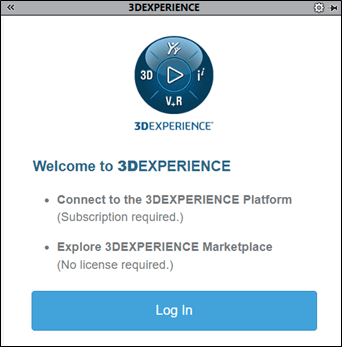
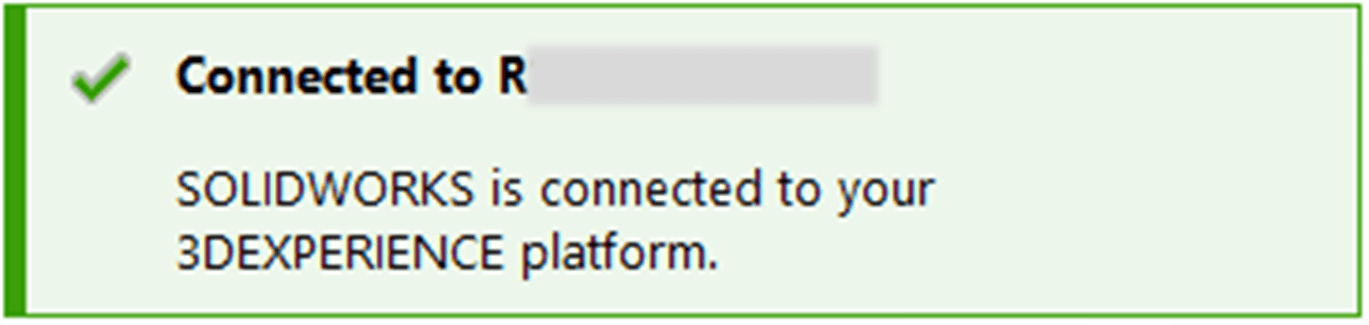
3) Once SOLIDWORKS is connected to the 3DEXPERIENCE platform, a green confirmation message will pop up and MySession becomes available in the task pane.
4) In MySession, right-click your part (for example: Cuboid) and click “Save”.
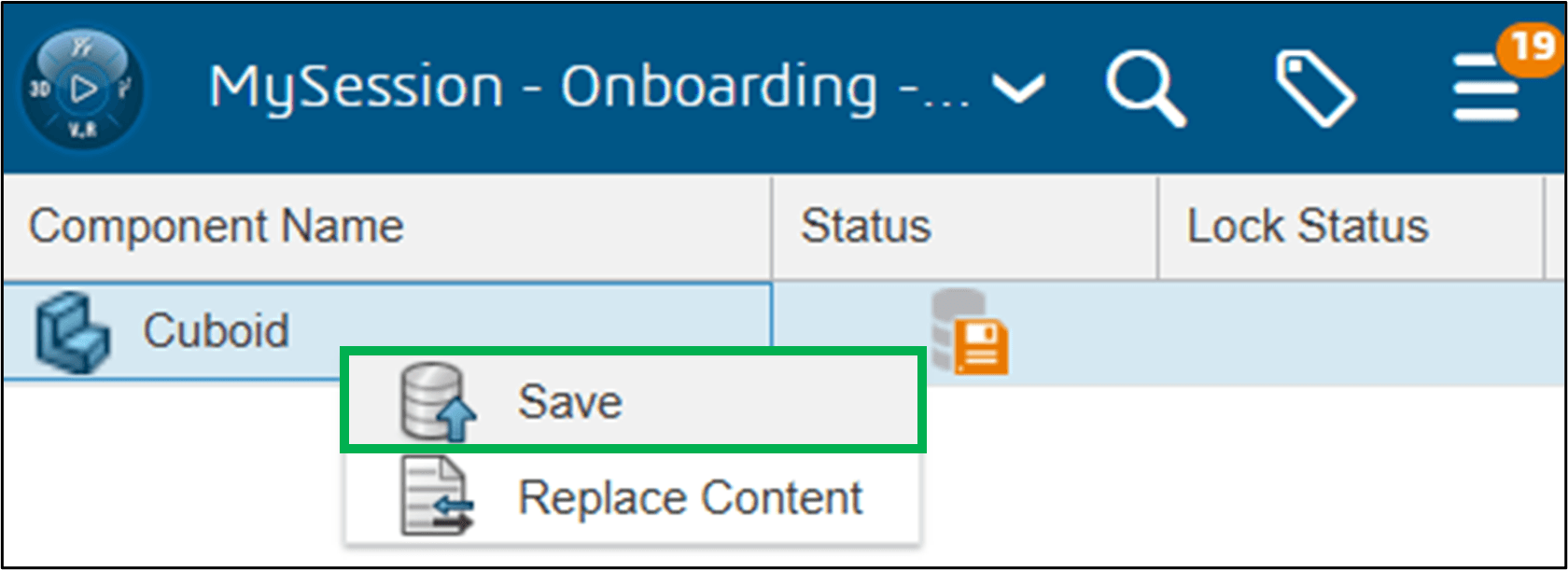
Note: The orange disk icon in the “Status” column indicates that the current file has not been saved yet to the platform.
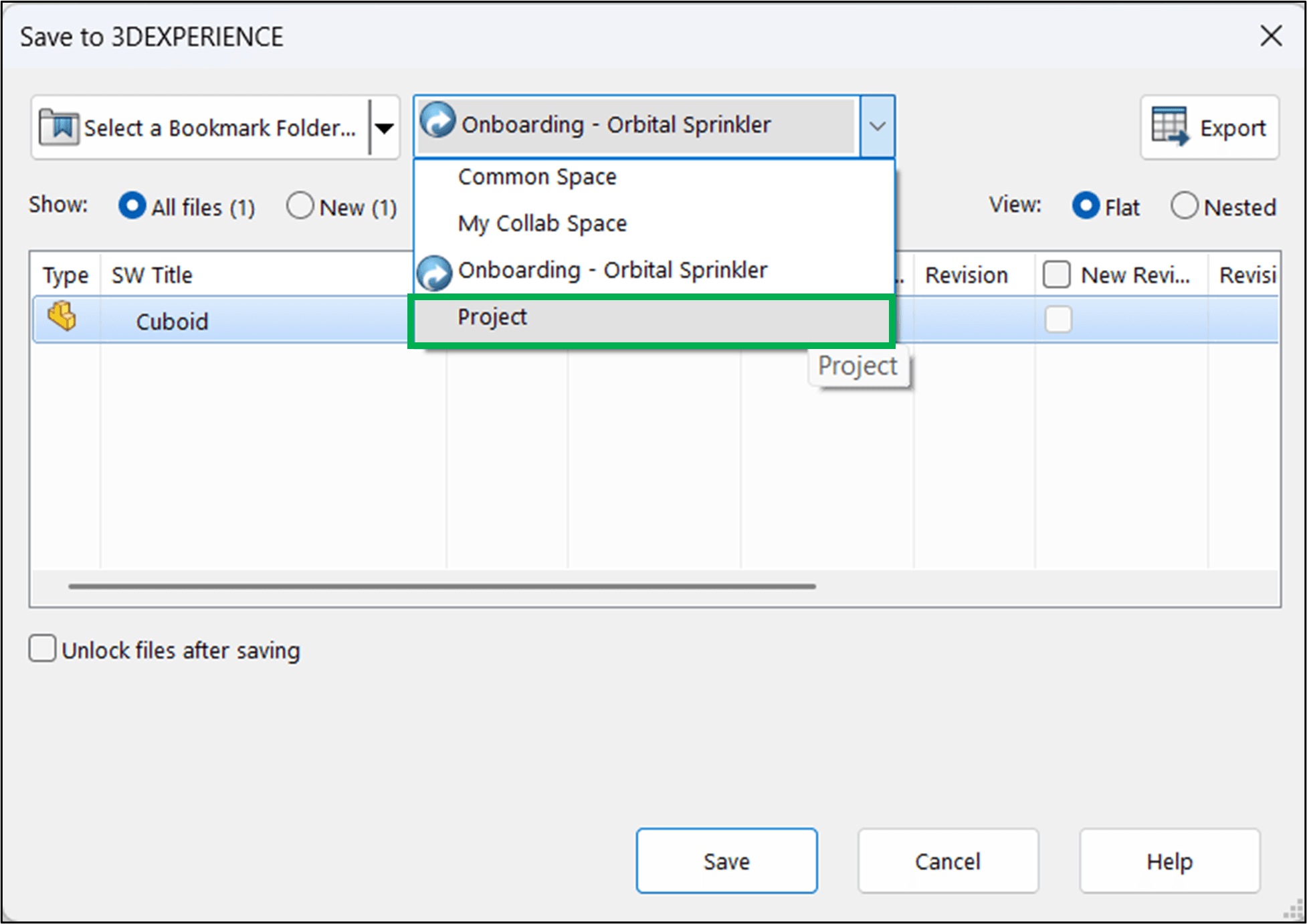
5) In the Collaborative Space drop-down menu, select your preferred collaborative space (for example: Project).
6) Click “Select a Bookmark Folder…”.
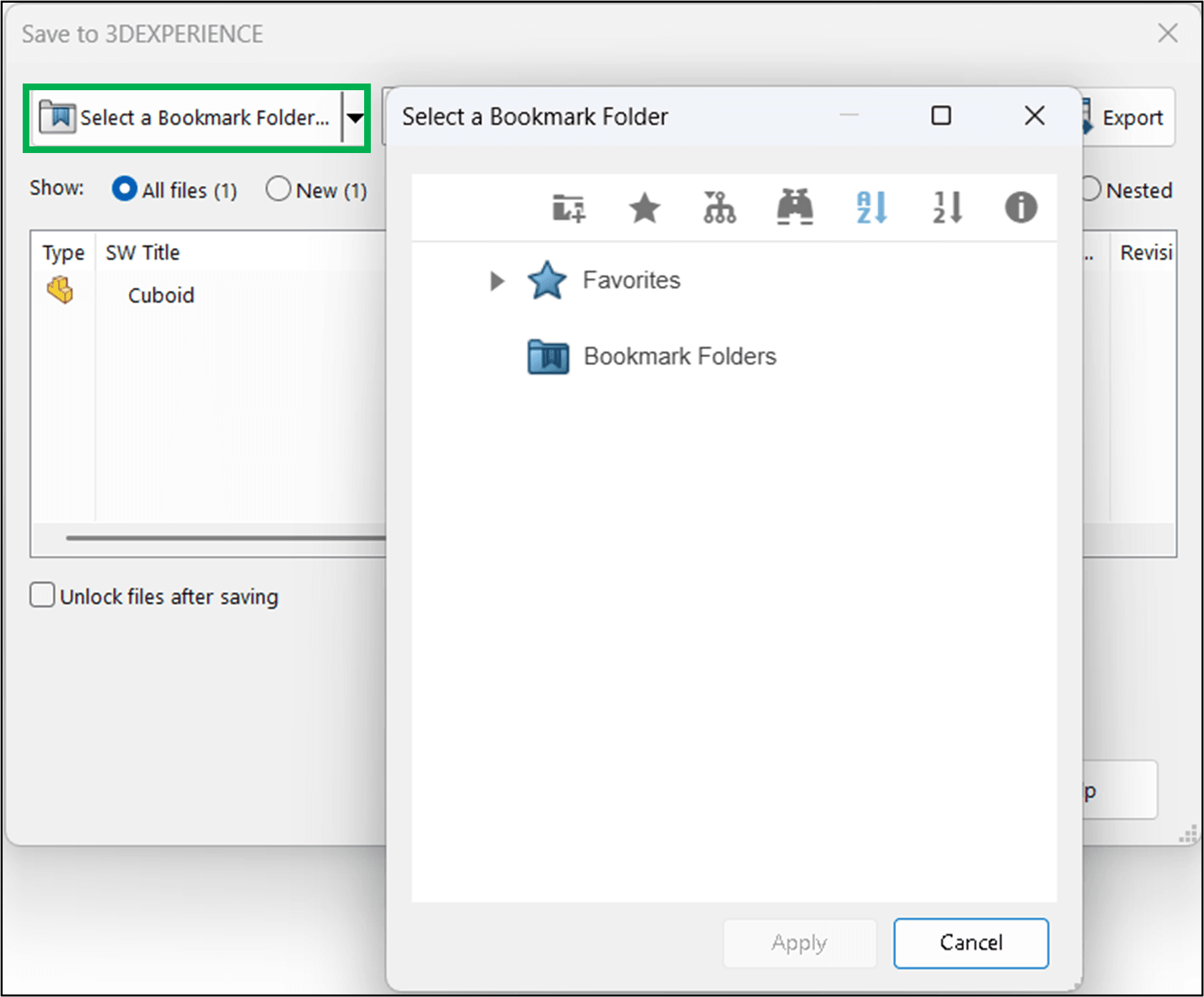
7) Select “Bookmark Folders” and click “New Bookmark Folder” icon to create a bookmark.
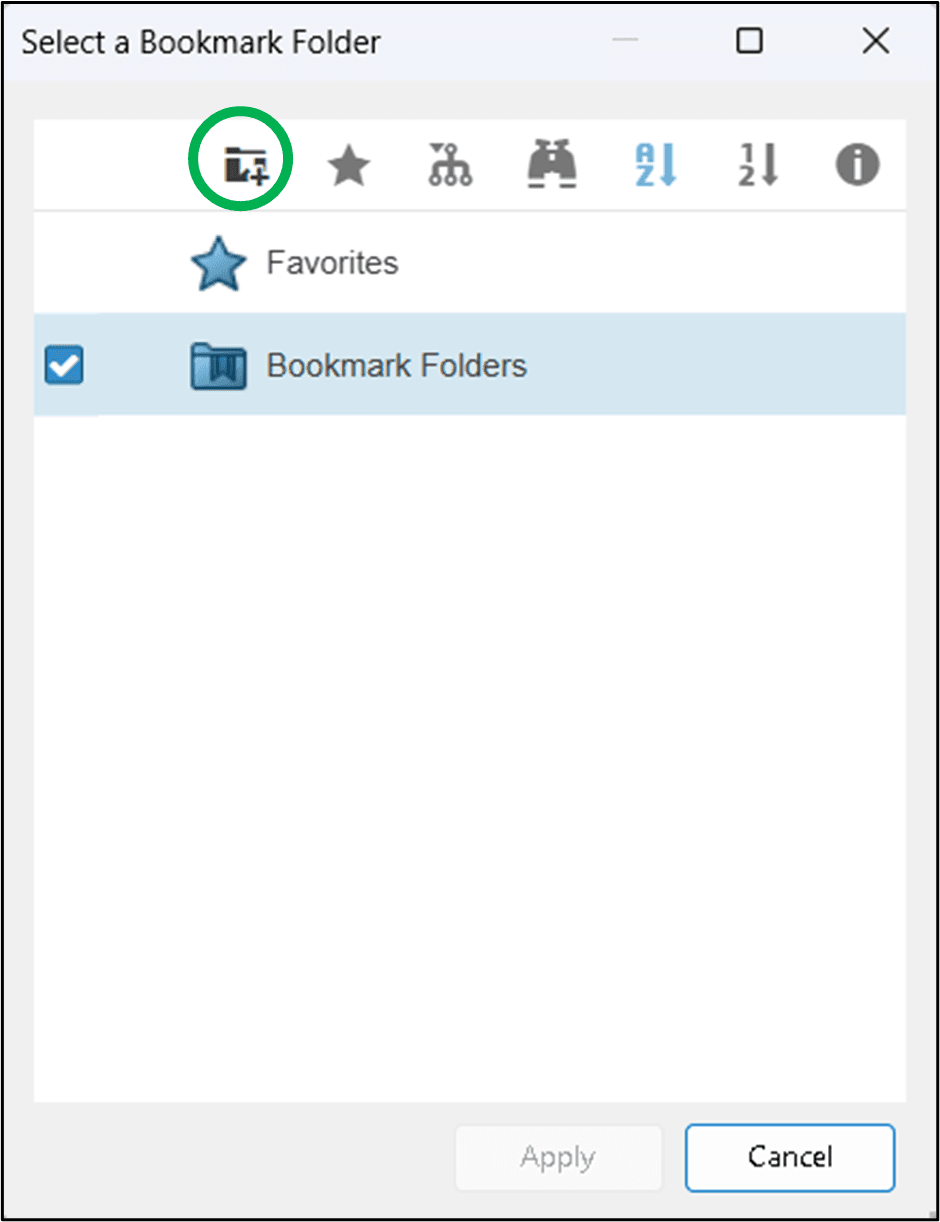
8) Name the new bookmark folder in the “Title” field and select the corresponding collaborative space (ex: Project) in the “Credentials” drop-down menu.
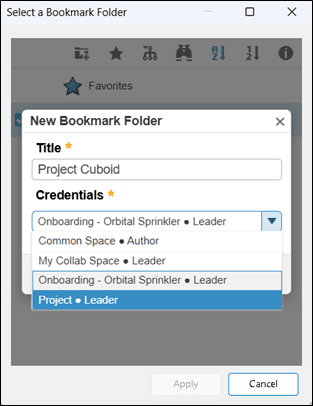
9) With the new bookmark folder selected, click “Apply”.
10) Tick the “Unlock files after saving” option and then click “Save”.
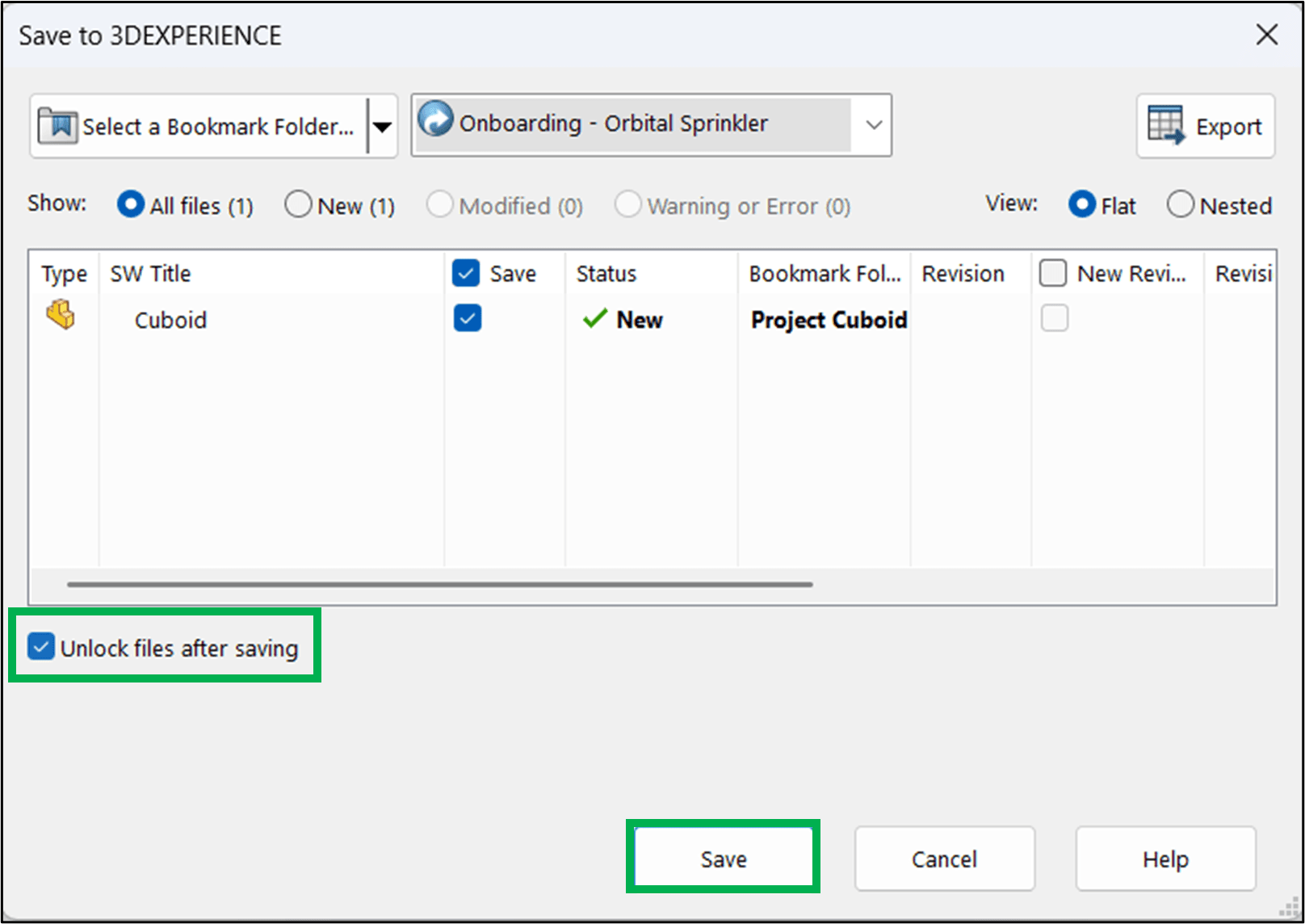
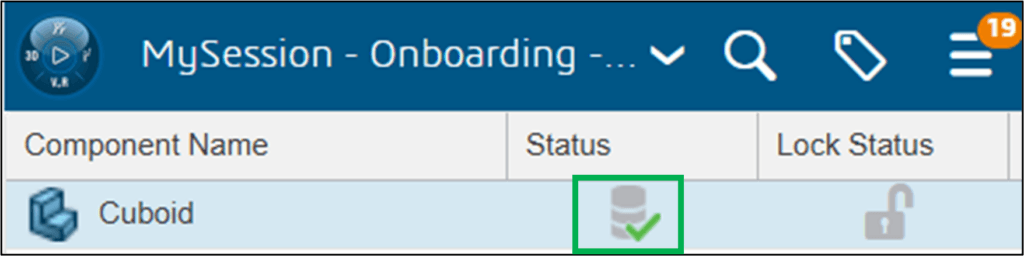
Note: In MySession, the green tick in the “Status” column indicates that your file has been saved successfully.
>>> If you encounter an issue when saving a SOLIDWORKS file to the 3DEXPERIENCE platform, you may contact [email protected] for assistance. You can also refer to the FAQ section for more details.